Key features
What Frappe Passkey does.
Sign in without a password
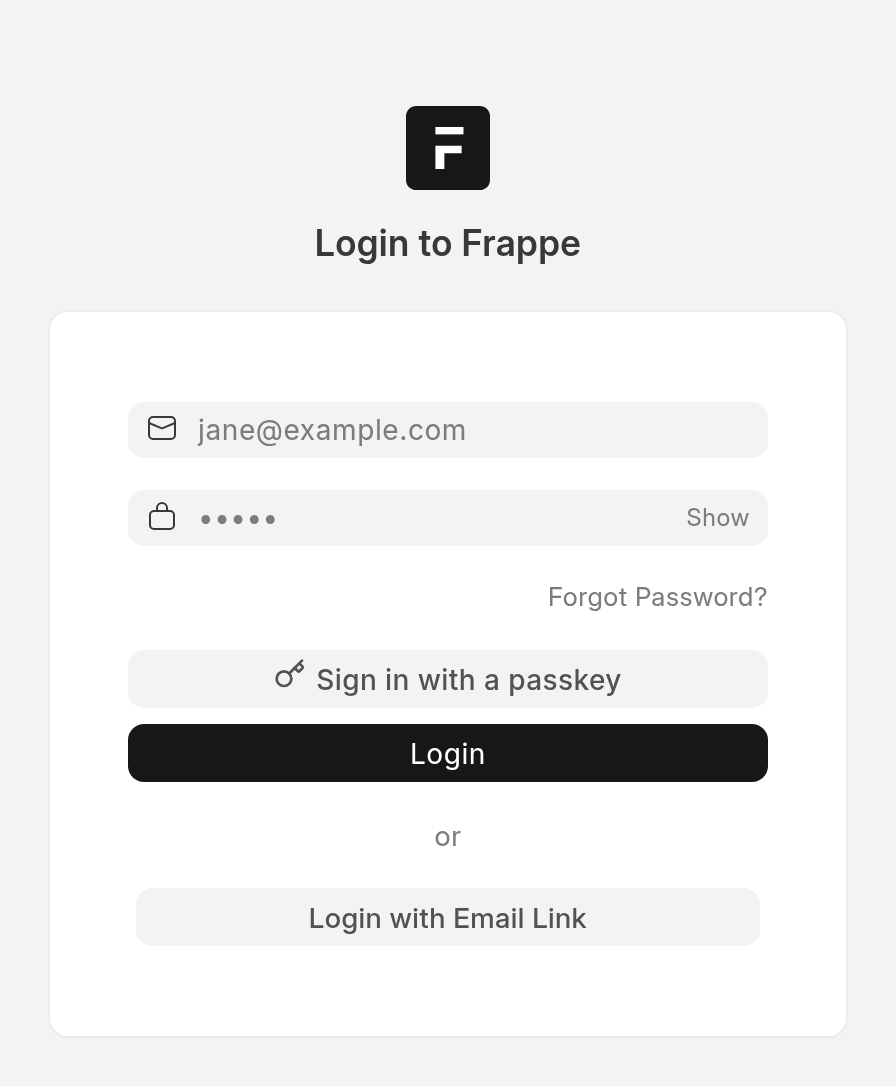
Choose a passkey in the username field, use the “Sign in with a passkey” button, or scan a QR code with your phone to sign in on another device. The autofill option is called conditional UI.
Add a second factor
Keep the password and ask for a passkey after it. This uses Frappe’s own two-factor flow. A one-time code remains an option only if the site allows that fallback.
Confirm sensitive actions
Ask for a fresh passkey confirmation before an action such as releasing a bank payment. Developers add @passkey_protected to a whitelisted method. By default, the confirmation is single-use, expires in about three minutes, and is bound to the user, session, action and the argument values named in bind_params. Arguments left out are not bound.
Help people enrol
Nudge users with a prompt cap and cooldown, or require enrollment for selected roles or everyone, with grace sign-ins. System Managers can stay required separately. Phone and QR enrollment is offered. The enrollment prompt runs after sign-in; the login modes decide how a session is authenticated.
Let users manage their passkeys
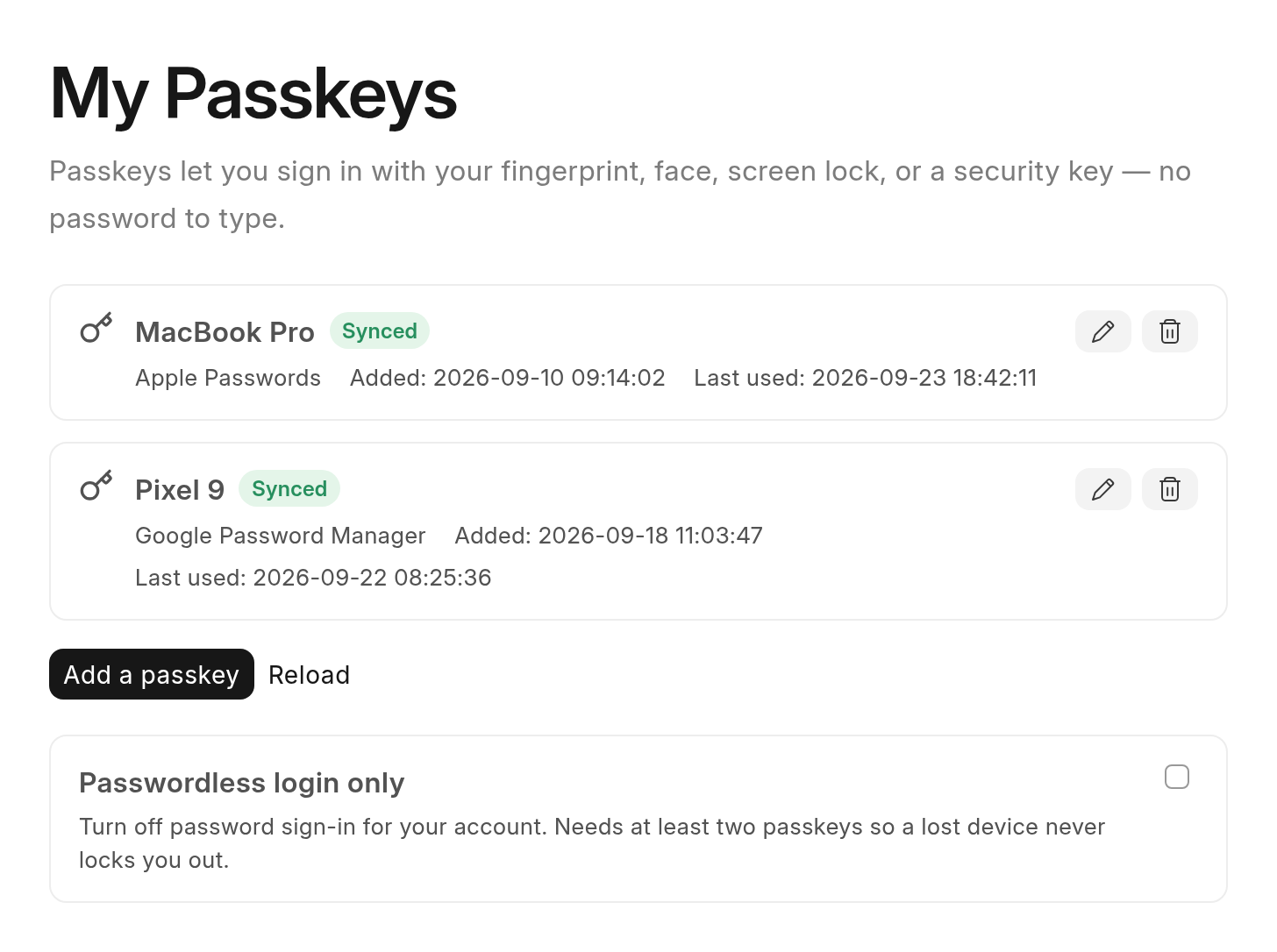
Users add, rename and remove their own passkeys at /passkeys. They can turn on “Passwordless login only” for their account after adding at least two enabled passkeys.
See the remaining ways in
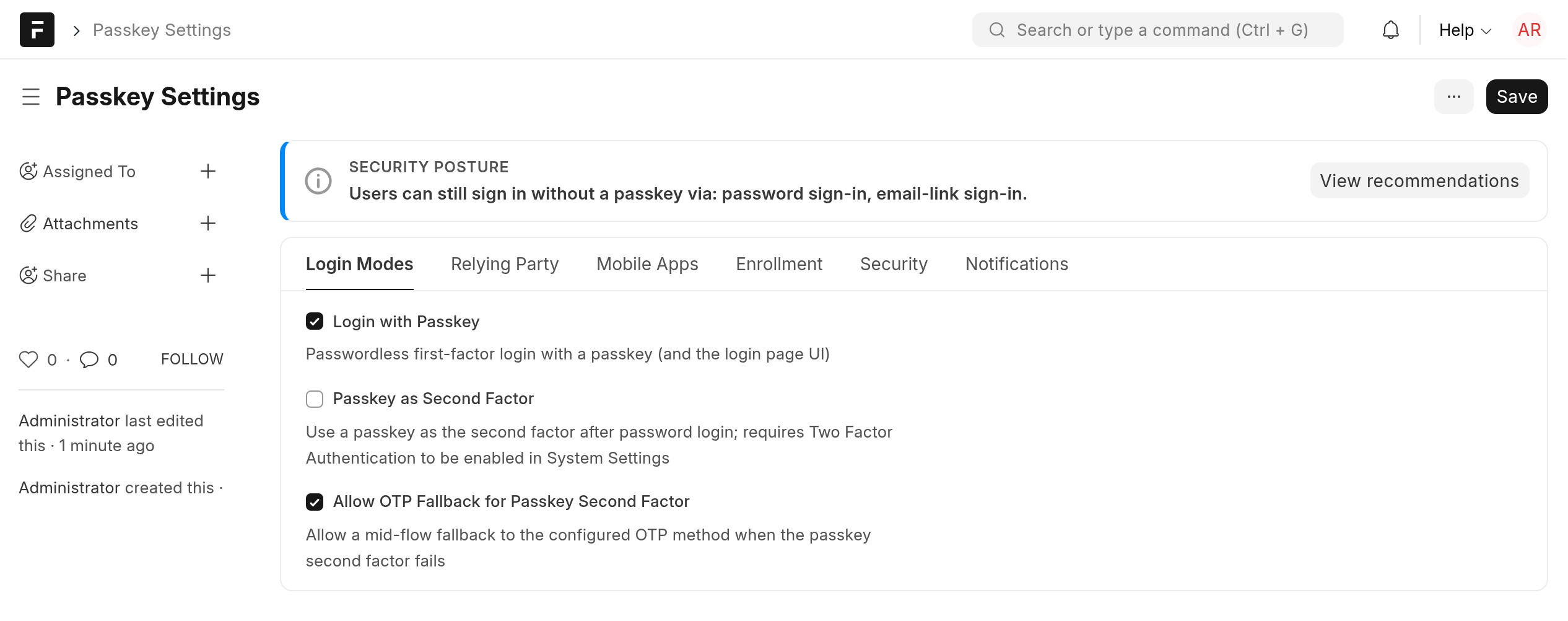
The security-posture panel in Passkey Settings lists sign-in routes that do not need a passkey and how to close them. System Managers can exempt a user from enrollment or reset their grace sign-ins on the User form. Recovery procedures cover lost passkeys and an administrator who cannot sign in.
Screens
What your users and admins see.
Why we built it
Our payments are approved inside ERPNext.
Our bank transactions run inside our ERPNext. When a checker approves a payment, the money moves. There is no second approval on the bank’s portal.
The approval in ERPNext is now the only thing standing between a payment and the bank. We wanted it to be at least as safe as the bank’s own approval, ideally safer. Password plus OTP didn’t get us there. Passkeys did. We built passkey support for our own sign-in and payment approvals, and released it under the MIT licence.
Engineering
Built the Frappe way.
Fits into Frappe
The codebase mirrors Frappe’s own structure: stored passkeys and settings are DocTypes in the app’s module, Passkey Settings is a single DocType like System Settings, and access follows Frappe’s role permissions, checked on the server. The app attaches only through sanctioned hooks and whitelisted endpoints, with no monkeypatching. One codebase serves Frappe v15, v16 and develop.
Built on WebAuthn
Registration and sign-in implement the WebAuthn Level 3 relying-party verification steps. The support guide lists the browser features and limitations.
Install
Up and running on your bench.
Install it with bench from the GitHub repository. Use the branch for your Frappe version: version-15 for Frappe 15.108.0 or newer on that line, or version-16 for Frappe 16.18.3 or newer on that line. Python must be at least 3.10 and below 3.15. Serve the site over HTTPS.
bench get-app --branch version-16 https://github.com/Andrometiq/frappe-passkeys
bench --site <site> install-app passkeys
bench get-app installs the Python requirements. If the WebAuthn wheel is missing later, for example after a manual checkout, run bench setup requirements for the app before enabling a mode.
Turning it on
Check the site and recovery path
Try the release on staging first. Set host_name or an explicit Passkey RP ID, then check the resolved RP ID and Passkey Origins in Passkey Settings. Changing the RP ID later invalidates enrolled passkeys. Back up the site and its encryption key, and test the recovery procedure.
Choose a login mode
Every login mode ships off. In Passkey Settings, turn on Login with Passkey, Passkey as Second Factor, or both. The second-factor mode needs Enable Two Factor Authentication in System Settings to stay on.
Enrol and test a backup too
Start with a small group while password login remains available. Enrol and test a passkey and a backup for each user before closing their other ways in. Rehearse recovery before tightening the settings.
Then close the other ways in
Use the security-posture panel to review password login, social sign-in and email links. Users can enable Passwordless login only at /passkeys; this is Passkey Only Login on their WebAuthn User Handle. For the passkey second factor, turn off Allow OTP Fallback for Passkey Second Factor to close the one-time-code option. A lost passkey then needs administrator recovery if no backup remains. The operations guide explains site-wide password restrictions and Administrator’s recovery boundaries.
Documentation
Everything else is in the docs.
Install
Install or upgrade the app, with version and reverse-proxy requirements.
Configuration
Every Passkey Settings field, its default and what changing it means.
Security model
What the app enforces, what it trusts and the risks that remain.
Recovery
Restore access for a locked-out user or administrator.
Custom UI
Build your own screens or add passkey confirmation to your app’s actions.
REST API
Endpoint arguments, responses and authentication requirements for integrations.
Mobile apps
Configure a native Android or iOS app to share the site’s passkeys.
Operations
Plan a rollout, manage domain changes and respond to credential incidents.